September 21, 2016 | General
An Internet Calendar Subscription is a calendar that you download and view in either iOS or Outlook. However, unlike a schedule download for calender applications, Internet Calendar Subscriptions are updated automatically (reflecting any changes in game times, cancellations, etc.) on desktop or laptop computers as well as your smartphone.
DOWNLOADING A SCHEDULE TO YOUR COMPUTER
Printable Instructions
Users on a PC
• From your computer, select the team from the dropdown menu at the top of ecupirates.com
• Once on the team page, click on schedule
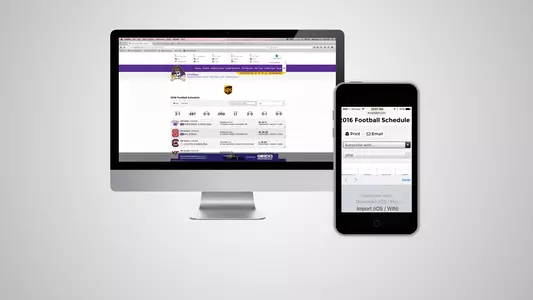
• From the schedule page, click on the Subscribe with…. dropdown menu (found under the UPS logo)
• Select Import iOS/Win from the dropdown menu, a new window will appear that asks Do you want to allow this website to open a program on your computer?
• Click Allow
• A second window will open that says Add this Internet Calendar to Outlook and subscribe to updates?
• Click Yes
• The schedule has been added to your calendar
For Google Calendar Users on a PC
• From your computer, select the team from the dropdown menu at the top of ecupirates.com
• Once on the team page, click on schedule • From the schedule page, click on the Subscribe with…. dropdown menu (found under the UPS logo)
• Select Google Calendar from the dropdown menu, a new window will appear that asks Would you like to add calendar?
• Click Yes, add this calendar
• The schedule has been added to your calendar
For MAC Users
• From your computer, select the team from the dropdown menu at the top of ecupirates.com
• Once on the team page, click on schedule
• From the schedule page, click on the Subscribe with…. dropdown menu (found under the UPS logo)
• Select Import iOS/Win from the dropdown menu, a new window will appear that has the URL listed.
• Click Subscribe
• A second window will open that has calendar settings allowing you to customize your alerts, preferences etc…
• Click OK
• The schedule has been added to your iCal
DOWNLOADING A SCHEDULE TO YOUR SMARTPHONE
Printable Instructions
For iOS/Win (iPhone) Users
•From your smartphone, go to ecupirates.comDOWNLOADING A SCHEDULE TO YOUR COMPUTER
Printable Instructions
Users on a PC
• From your computer, select the team from the dropdown menu at the top of ecupirates.com
• Once on the team page, click on schedule
• From the schedule page, click on the Subscribe with…. dropdown menu (found under the UPS logo)
• Select Import iOS/Win from the dropdown menu, a new window will appear that asks Do you want to allow this website to open a program on your computer?
• Click Allow
• A second window will open that says Add this Internet Calendar to Outlook and subscribe to updates?
• Click Yes
• The schedule has been added to your calendar
For Google Calendar Users on a PC
• From your computer, select the team from the dropdown menu at the top of ecupirates.com
• Once on the team page, click on schedule • From the schedule page, click on the Subscribe with…. dropdown menu (found under the UPS logo)
• Select Google Calendar from the dropdown menu, a new window will appear that asks Would you like to add calendar?
• Click Yes, add this calendar
• The schedule has been added to your calendar
For MAC Users
• From your computer, select the team from the dropdown menu at the top of ecupirates.com
• Once on the team page, click on schedule
• From the schedule page, click on the Subscribe with…. dropdown menu (found under the UPS logo)
• Select Import iOS/Win from the dropdown menu, a new window will appear that has the URL listed.
• Click Subscribe
• A second window will open that has calendar settings allowing you to customize your alerts, preferences etc…
• Click OK
• The schedule has been added to your iCal
DOWNLOADING A SCHEDULE TO YOUR SMARTPHONE
Printable Instructions
For iOS/Win (iPhone) Users
•Select the team from the dropdown menu at the top right
•Once on the team page, click on schedule
•From the schedule page, click on the Subscribe with…. dropdown menu
•Once you select Import iOS/Win from the dropdown menu, a new window will appear that asks Open this page in "Calendar?"
•Click Open
•A second window will open that says Subscribe to the calendar
•Click Subscribe
•A window will appear that says the calendar has been added
•Click Done
•The schedule has been added to your calendar
For Android Users
•Click Open
•Click Save All To Calendar
•The schedule has been added to your calendar



Wednesday, October 21
Monday, October 19
Wednesday, October 14
Monday, October 12


